How to Run Cursor Agent From Your Phone
A step-by-step guide to running and supervising Cursor Agent from iOS or Android with Remoot: install the bridge extension, pair with a QR code, trust a project, and approve agent actions on the go.
Cursor Agent is good at long-running work: refactors, test fixes, multi-file edits. The catch is that long-running work doesn't need you at the desk — it needs you to check in. You review what the agent did, approve the next step, and walk away again. That check-in loop is exactly what a phone is for.
This guide walks through the full setup with Remoot: installing the bridge extension in Cursor, pairing your phone, trusting a project, and then starting and supervising an agent run from iOS or Android. It takes about five minutes end to end.
What you need
- Cursor (or VS Code) running on your desktop or laptop — the machine where your code lives.
- The Remoot bridge extension, free from the Cursor marketplace.
- The Remoot app on your phone (iOS or Android — links at the end of this post).
Step 1 — Install the bridge extension
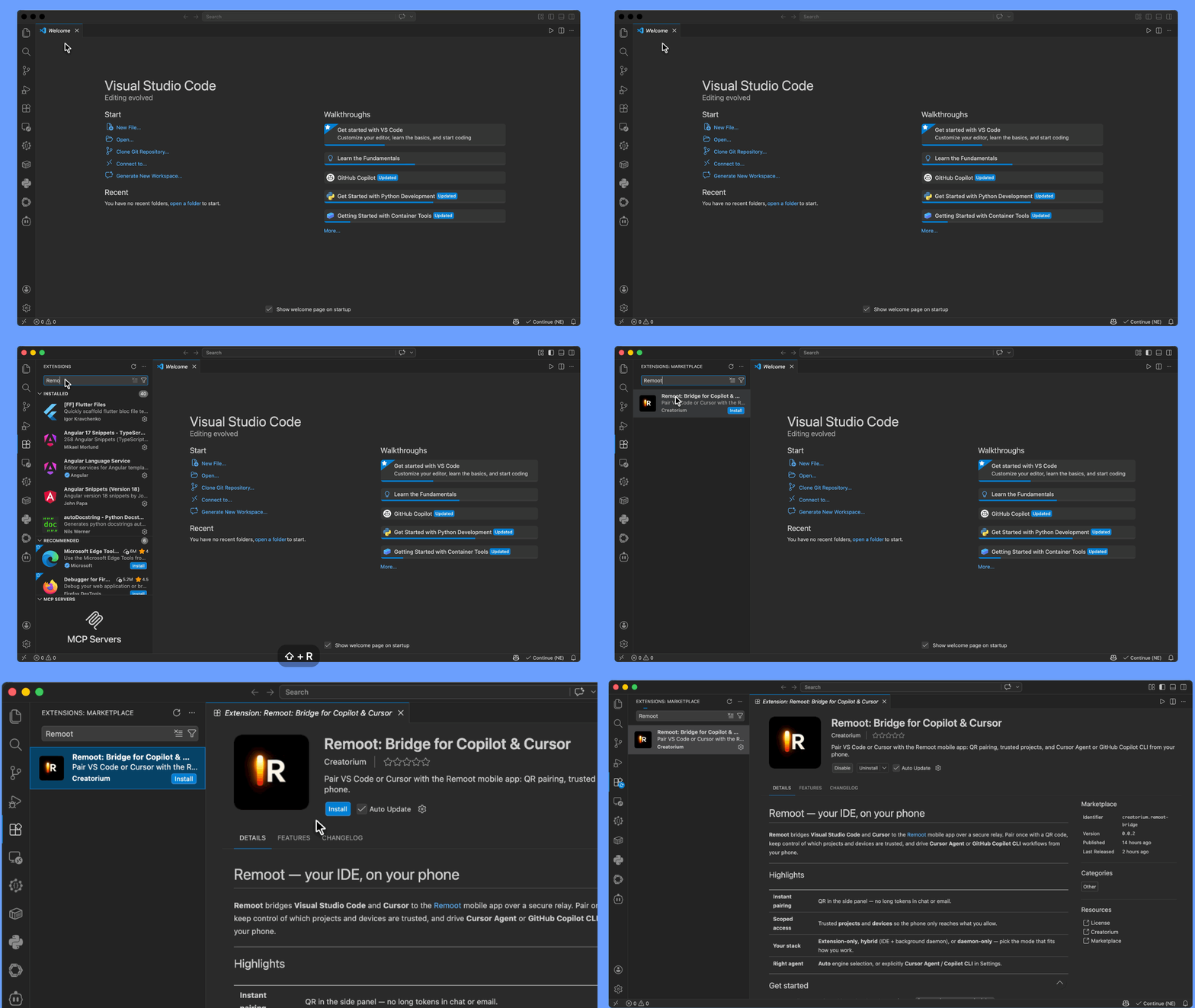
In Cursor, open the Extensions panel and search for Remoot, or install it straight from the marketplace link above. The extension is called Remoot: Bridge for Copilot & Cursor, published by Creatorium.
Once installed, a Remoot icon appears in the sidebar. The extension runs a small background daemon that keeps the connection alive even when the editor window isn't focused, and it can prevent your machine from sleeping mid-run if you allow it.
Step 2 — Pair your phone with a QR code
Open the Remoot panel in Cursor and choose Pair device. You'll see a QR code. On your phone, open the Remoot app and scan it.
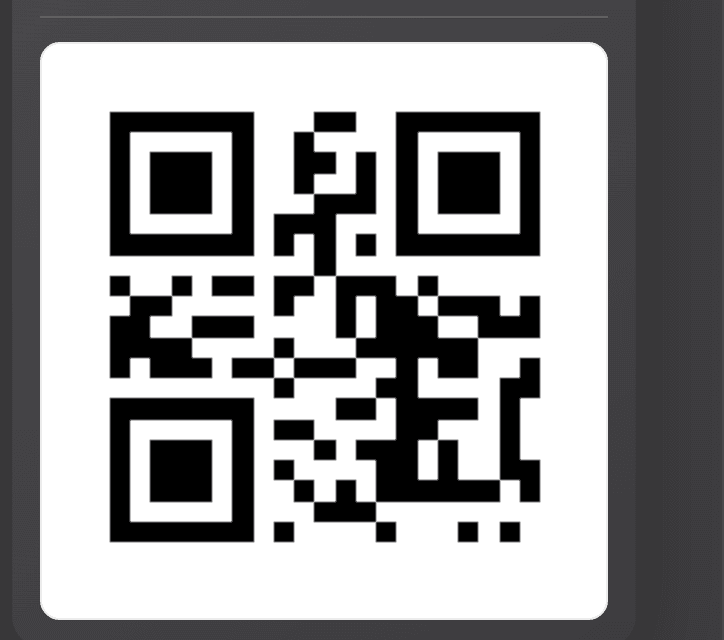
Pairing is a one-time handshake: the QR code carries a short-lived token, and after the handshake your phone becomes a trusted device for that workstation. There is no account-wide access — trust is per device and revocable from the extension at any time.
Step 3 — Trust a project
Remoot won't expose every folder on your machine. You explicitly mark the projects you want reachable from your phone — everything else stays invisible to the app.
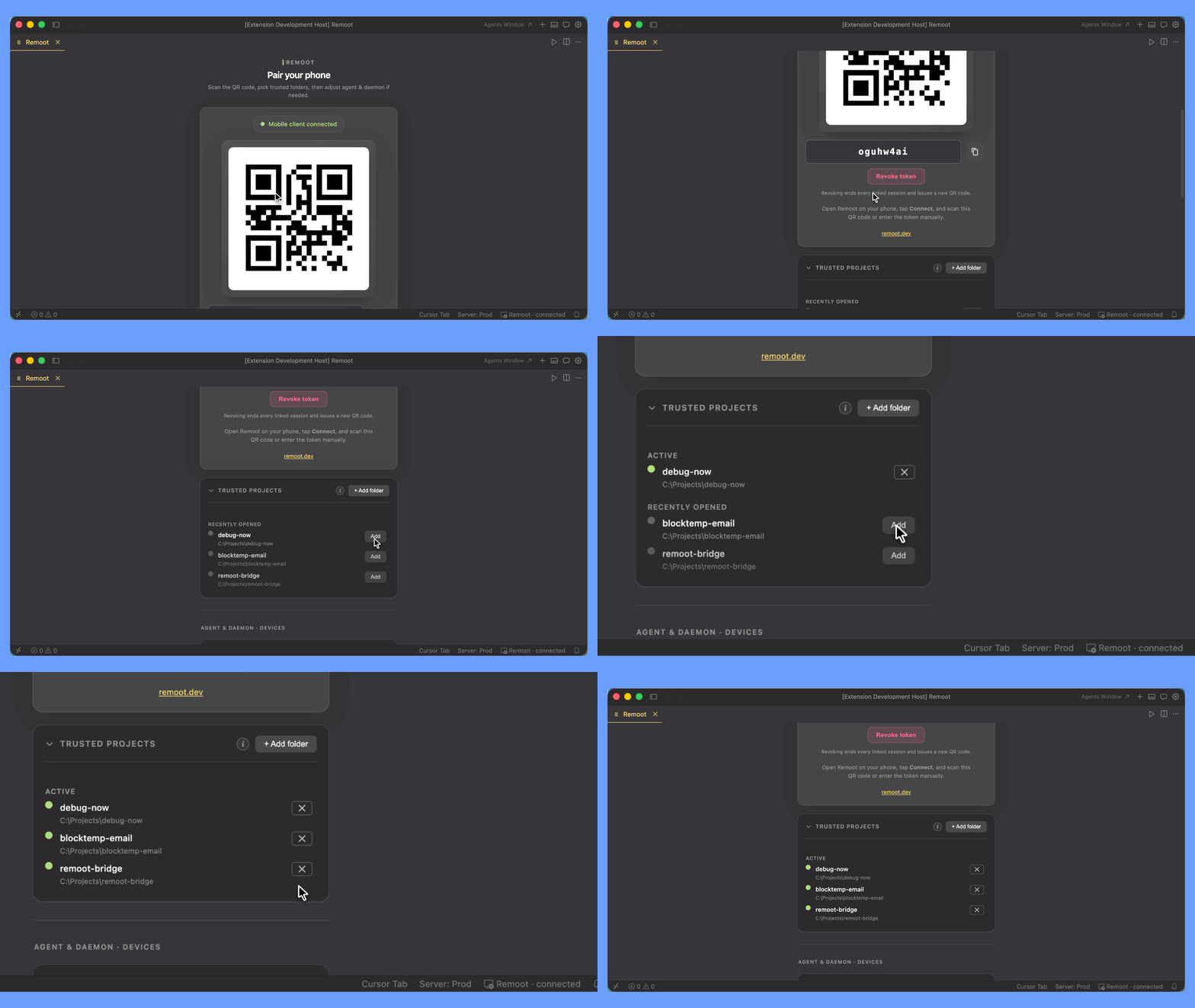
Step 4 — Start an agent run from your phone
With the pairing done, open the project in the Remoot app. You get a chat-style view backed by Cursor on your desktop. Pick Agentmode (Ask and Plan modes are there too), type a task the way you would in Cursor's agent panel, and send it:
Migrate src/api/client.ts from axios to fetch.
Keep the retry logic, update the tests, and run them.
The agent runs on your workstation with your local toolchain, your git state, and your Cursor configuration — the phone is a remote control, not a second environment. You'll see the agent's progress stream in live: files being edited, commands being proposed, test output.
Step 5 — Approve, inspect, repeat
When the agent wants to do something that needs sign-off — run a shell command, apply a bigger change — the approval prompt lands on your phone as a push notification. From there you can:
- Approve or reject the pending action with one tap.
- Open the file tree and preview any file the agent touched before deciding.
- Send a follow-up prompt to redirect the agent if it drifted.
The full action history stays in the app, so a check-in after an hour away is a scroll, not an archaeology session.
Honest limitations
- Your workstation has to be on and online — Remoot relays to your machine, it doesn't replace it. The extension's sleep-prevention option helps for long runs.
- The phone is built for supervision: prompts, diffs, approvals, file previews. For heavy editing you'll still want the desktop or the Web IDE.
- Agent capability is whatever your local Cursor can do — Remoot adds reach, not model access.
That's the whole loop: pair once, trust a project, and Cursor Agent stops being tied to your chair. The setup below takes about a minute.